

Lab Set Up
This document references a Repo found on GitHub at:
Fork or Clone the Repo to experiment locally with the Project in Visual Studio.
Cookies
Background
Cookies store a small amount of data in the user's browser. Cookies can be blocked by the browser and should not be used to store sensitve data. However, despite these limitations Cookies are a crucial part of web applications. In combination with other technologies they can be used to overcome the 'statelessness' of the web. A basic use-case for cookies would be storing non-essential user settings such as a selected theme style. A more common use-case is to store 'session' information. This 'session' information allows web applications to 'remember' information from one page to page and facilitate the likes of logins and shopping carts.
Cookies are part of HTTP and all server side technologies (PHP, Node.js, Python etc) have functionality to read and create them.
Creating, Reading and Deleting Cookies
As Cookies are stored in the browser, HTTP Requests and Responses are used to get and set the cookie.
A Cookie value is set with:
A Cookie is with read with:
A Cookie is removed with:
Note:
Notice how Cookies are set and removed with Response and read with Request respectively. As ever this is HTTP in action!
Cookie Options
When setting a Cookie there are a range of optional [options]. Common options are:
Domain- The domain associated with Cookie - it will not be set outside of this domain.
Path- Cookie Path - the path on the server where the cookie can be set.
Expires- The date and time when the Cookie expires - if not set the Cookie is deleted when the browser is closed.
HttpOnly- Indicates Cookie can only be read/set by HTTP and not client-side Javascript - set this to true for securer applications.
Secure- Indicates the Cookie can only be read/set on a HTTPS/ Secure Sockets Layer (SSL) connection - set this to true for securer applications.
Cookie options are set via the CookieOptions class.
The Initial GET Controller Action
We'll create a simple page that can be used to set a favourite colour value in a cookie.
In the Controllers/HomeController add the first action as follows:
The Controller checks to see if a cookie Colour has been created. If so it is added to ViewData for display in the View. If not, then a default value of 'red' is used.
Create the View
The following View displays the value of ViewData["myColour"]. There is also a HTML form to allow the user to pick a colour.
Note the use of the asp-for tag helper than is used to set the selected attribute on the option tag whose values matched that in ViewData["myColour"].
Action Post Controller
We now need a HtttPost Action for our form. This receives the values from the form via the parameter IFormCollection form. The value is assigned to the newColour string variable.
A CookieOptions object is created and an Expires value of 10 minutes created.
The new Cookie named Colour is created with the newColour value and CookieOptions.
Checking the Cookie has been Created
To view the Cookie in Google Chrome use the Application Tab in the Chrome Inspector.
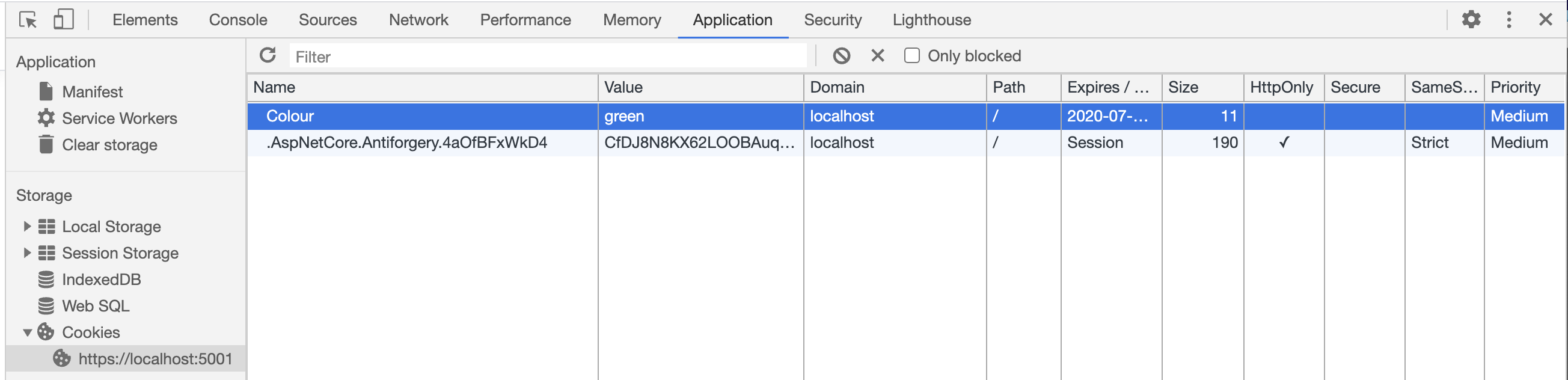
Using the Cookie in another View
To use the cookie value in another View of the application is now a case of retrieving the cookie value in the controller. For Example, in a Controller add:
Then create a View and use ViewData to pass the Cookie value:
The Cookie value should appear in the page.
Challenge:
Open and close the Browser to see if the Cookie persists.
Can you add an Action to delete the Cookie?
Can you create a second Cookie value to count how many times you have visited the page?