

APIs
Scaffolding in an API Only Project
We can customize this starter project to add our own data model. To extend the project we'll create a database and table to hold player score data. This will require setting up a connection, a DbContext and setting it up for dependency injection into any appropriate controllers.
We'll be using Entity Frameworks so the following packages are required:
- Microsoft.EntityFrameworkCore
- Microsoft.EntityFrameworkCore.SqlServer
- Microsoft.EntityFrameworkCore.tools
Add a Model
Storing the Connection String in appsettings.json
We need to apply settings, as with our MVC project, to tell the application which database we intend to use. This is done through a 'Connection String'. The settings for the Connection String are placed in appsettings.json
The above shows the connection string for a Local MSSQL database of name 'Players'. This will be stored on a local server (localdb)\\mssqllocaldb.
Creating a Context and Declare a DbSet Property
As we're using Entity Framework to manage our database we need to establish a context which is achieved via the DbContext class.
Part of the Entity Framework Core, the DbContext class represents a session with a database and provides an API for working with the database.
To establish a Context, create a class file at Models/PlayerScoreContext.cs
Configuring the Startup.cs
Once created, we use the DefaultConnection to set up the DbContext and make it available for dependency injection. This is done in the Startup.cs files ConfigureServices() method by adding the Context in as a service. Under services.AddControllers(); add:
Migrate and Build
With the files set up we can now use the console in Visual Studio create a Migration file and then build the database.
Use the console to run the migration command and then update the database.
Add-Migration Initial
If successful the above should create a Migration file that will have the necessary code to create the table. Next update the database with the second console command:
Update-Database
View the Database Table
The Table and the Data (or lack of) can now be viewed through the SQL Server Object Explorer.
In Visual Studio select View > SQL Server Object Explorer, locate the (localdb)\\mssqllocaldb and drill in to locate the table created by the migration. Right click on the table and choose View Data.
Add one or more records manually for testing.

Scaffolding API Actions with Entity Framework
Visual Studio comes with a clever scaffolding feature. This will create a Controller with actions relating to the core RESTful calls.
To start the scafolding in the Controllers folder right-click to add new content and choose New Scaffolded Item.
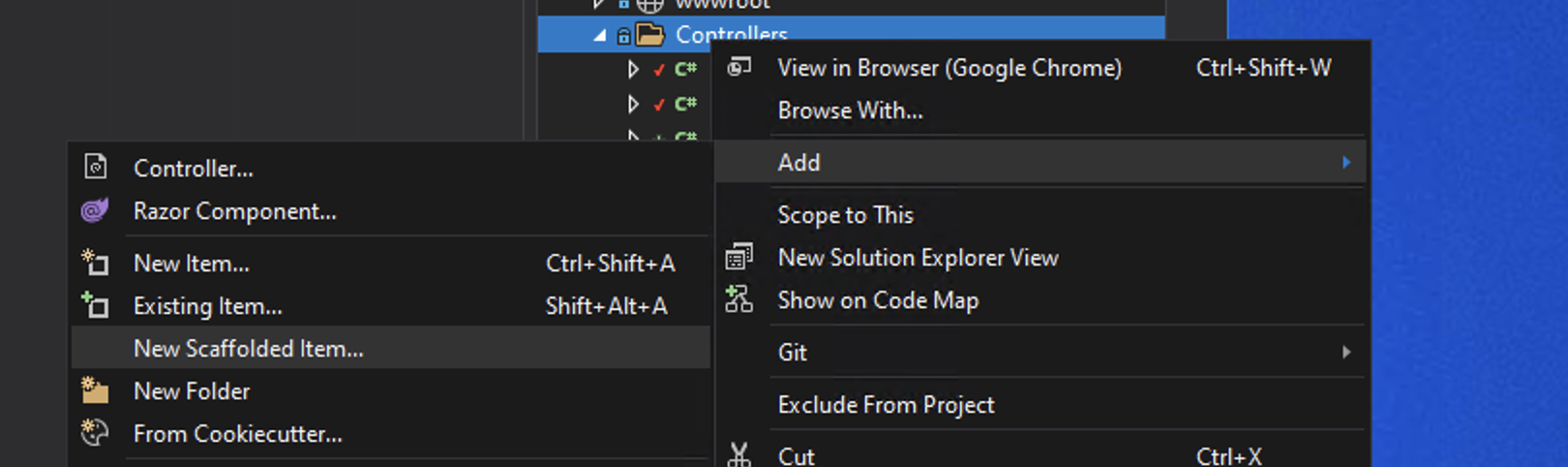
Next choose API Controller with actions, using Entity Framework:

We next choose the Model class we would like API Endpoints for and the Data context class (the DbContext) to use. We can also set a Controller name but a sensible one is picked from the model selected.

Once done the scaffolding process will begin.
Exploring the Scaffold Files
Once complete a PlayerScoresController file will be created that provides Endpoints for the core HTTP verbs of GET, POST, PUT and DELETE. The file appears as follows:
Testing the API
Test the API at localhost:5000/api/PlayerScore and it will produce:
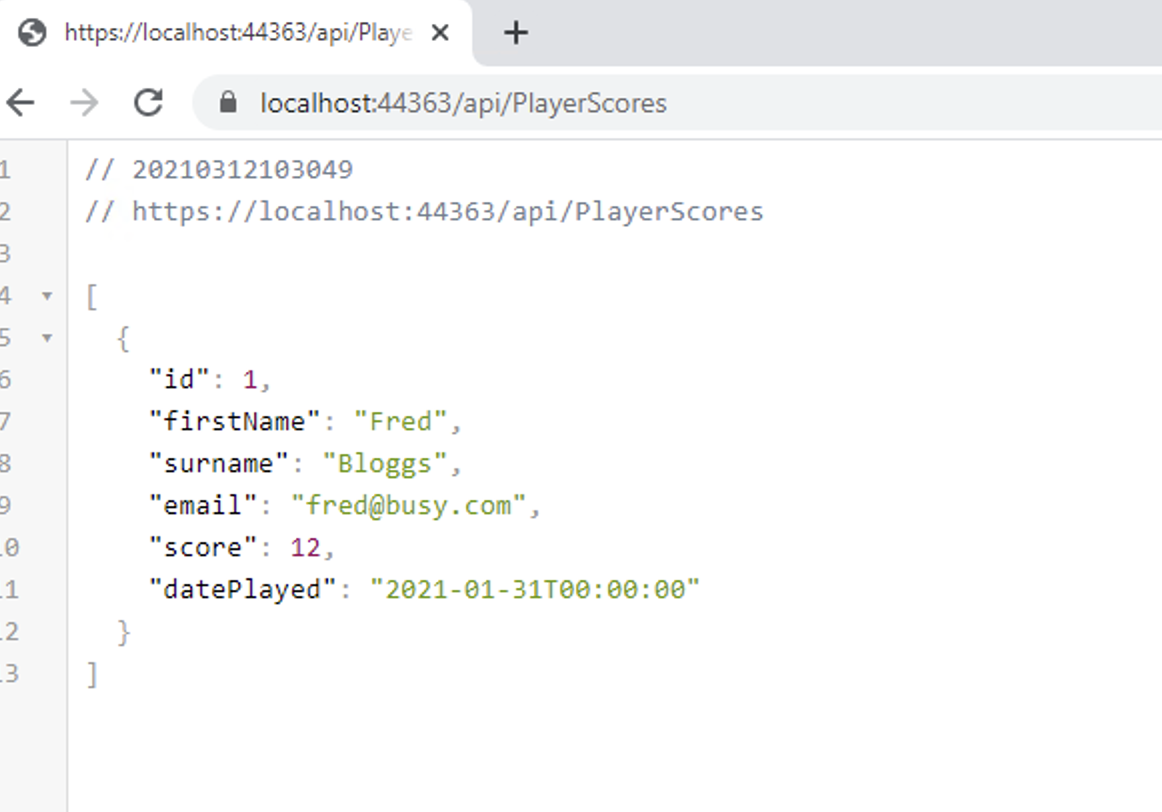
The above is the result of the GetPlayerScores() above been called.
Notice the use of async to indicate this is an asynchronous method. More on this later.
Swagger / Open API
We can create information to help others use the API via automated documentation provided via Swagger part of Open API.
This requires the loading of the package:
- Swashbuckle.Aspnetcore
Add this package to Startup.cs with:
using Microsoft.OpenApi.Models;
... and amend the ConfigureServices() with:
... and amend the Configure() with:
You can then test Endpoints easily via localhost:5000/Swagger/
Note:
Depending on Your Version of Visual Studio you get the option to enable Open API when the project is created. This automates the above.