

Sample Site Repo
This document references a Repo found on GitHub at:
Supporting Video: Sending Data from Views to the Controller (GET and POST)
HTTP to the Rescue
Server Side Technologies need to be able to retrieve data from the View. This can take the form of explicit user input into forms with many different types of data, through to simple single values passed via Routing patterns. Both techniques rely on the HTTP calls from the client to the server.
HTTP calls are categorized by method (verbs). The most common methods are GET and POST.
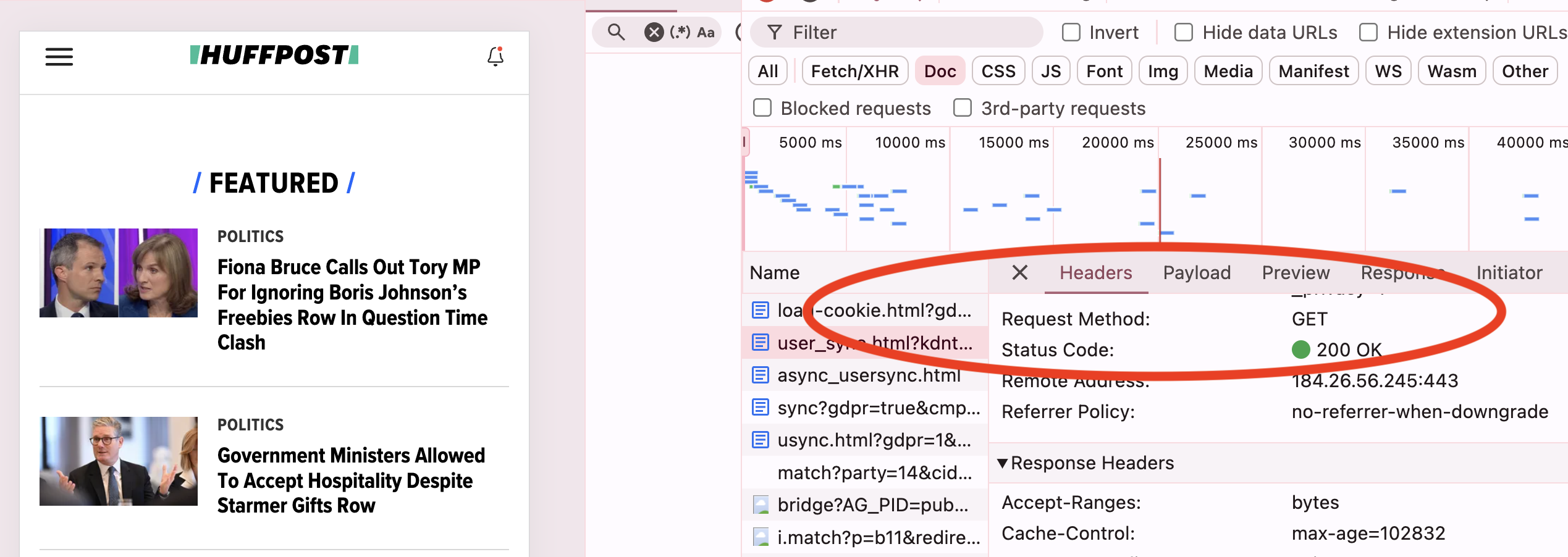
You can see the HTTP method used in the Chrome Inspector Network Tab. For a standard webpage the majority of the calls are GETs.
Parameters via Route
The default Routing in the MVC project allows the sending of a Parameter via the URL.
To recap the Startup.cs file is used to route URL calls to a {controller=Home}/{action=Index}/{id?}.
The {id?} in the default pattern allows a value to be picked up from the parameter.
Open the file Views/SendParameter.cshtml. Notice the link with the URL https://localhost:5001/Home/SendParameter/15 and the id value of 15.
This can be sent to the Controller Action as seen in Controllers/HomeController.cs action SendParameter().
The above action expects the id to be an int. For illustrative purposes the value is sent back to view via ViewData.
string. rather than an int.Tip: Actions can be tested without Views using the Ok method. Try adding an action of:
This can be tested with https://localhost:44354/Home/ActionTest/55.
Sending Data from HTML Forms with HTTP POST
HTML forms are an essential part of any web application as they are the way users can send data to the application and are used from logins, to feedback forms to shopping carts. In HTML a <form> has two important attributes:
method- Sets the HTTP method by which the data is sent when the HTML form is submitted. Can be either
getorpost. If themethodis not included or has no value set then the default is GET. action- Sets the URL called by the HTTP method. If left blank then the data is re-sent to the same URL.
It is also important to remember that the name attribute of form elements is used to submit the form data in Name/Value pairs.
To initially display the View that contains the form, a HTTP GET call is made. If the form has a method attribute of post, then when the form is submitted a HTTP POST call is made.
The sample file Views/SampleForm contains a HTML form. This form is going to send data via the HTTP POST method back to the same Routing location. As such the HTML will be:
However, note in the file Views/SampleForm the following is used:
The above is an example of a .net Tag Helper. The form Tag Helper has non-standard attributes asp-controller and asp-action. These relate to the Controller (in this case Home) and the action (in this case SampleForm). The method remains a standard HTML attribute and indicates that the data in this form will be send via the HTTP POST method.
In the Controllers/HomeController.cs there need to be two actions one for GET to initially display the form and one for POST to receive the data.
The action for GET is straight-forward.
A second action will be required for when the form is submitted and the data 'posted' from the form. The action has the same name of SampleForm but is differentiated by placing of [httpPost] before the action. This is the HttpPostAttribute that indicates the action is set up to respond to a HTTP POST call.
Note: Actions by default assume a GET call. You an explicitly set this with [httpGet] but it is not required.
The data sent from the HTML form can be retrieved by the Controller's Action as parameters. The five parameters can be seen below each set to be a string:
When the form is submitted the HTTP request is sent via POST. The values in the form are sent as name/value pairs in the HTTP Request header. These HTTP headers can be seen using the Chrome Inspector's Network tab and are labelled as Form Data.
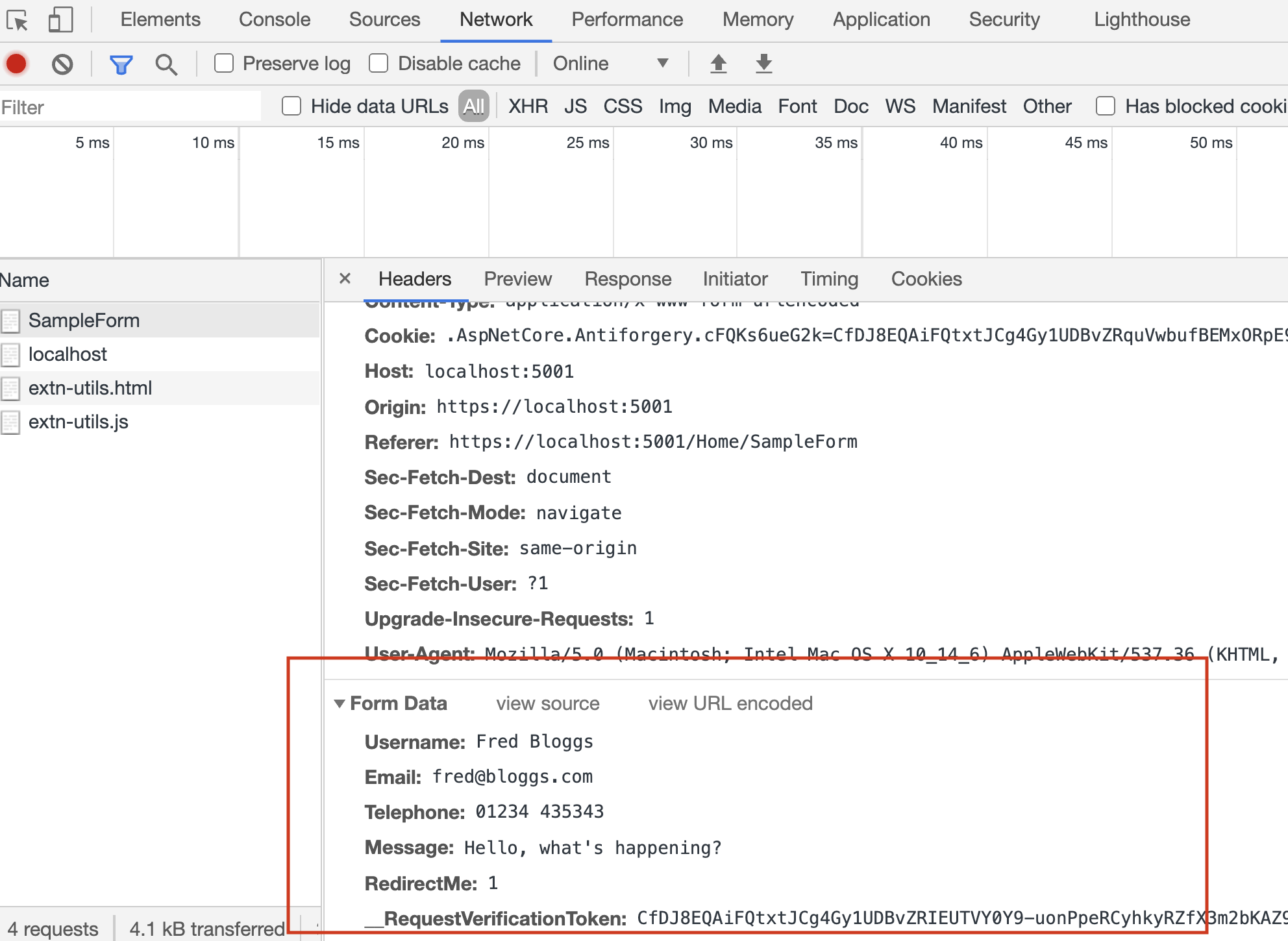
Note: You may notice a name/value pair for _RequestVerificationToken.. This is a security feature related to Cross-Site Request Forgery (CSRF). More on security later.
Improving Forms by Associating them with a Model
The above technique works but writing a big list of parameters for the action can be tricky to work with. Also it is often the case that data from a form relates to a backend database. As such it is often better to create a Model to represent the form data.
Open the sample file Models/FeedbackForm.cs the core of which is:
The FeedbackForm model is a class that represents the form data. All values from this form are strings, however notice the use of the [EmailAddress] Data Annotation. This can be used for data validation. A list of built-in attributes can be found in the Microsoft Documentation.
In the Controller the POST action can now use the FeedbackForm model as a parameter.
In this trival example we just send the model straight back to the view Views/SampleModelForm using the viewmodel technique.
This means that the view can now make use of the model to show the values submitted by the form. The values can be displayed with @Model.SomeProperty and in addition the Tag Helper asp-for can be used on the HTML <label and <input> elements to automatically add the appropriate name, id and for attributes.
With the Tag Helper asp-for the cshtml of:
... is rendered to standard HTML of :
Sending Multiple Values with a Query String
The default routing in the MVC project allows the sending of a Parameter via the URL. However, you may wish to send multiple values in a GET request. This can be done through custom routes or by using the standard HTTP Query String concept. A Query String is a URL followed by a ? then name/value pairs separated by &. For example https://localhost/Home/SomeAddress?name=fred&age=21 represents a Query String with two name/value pairs of name and age.
Open the View Views/QueryStringDemo.cshtml. Notice there is hyperlink with Query String including values for price and size.
... and appears in the browser as:

These can be retrieved by the action in the Controller as parameters as follows:
There is also a HTML Form in Views/QueryStringDemo.cshtml. Notice this has a method of get which means its values are sent to the same action above. It is worth noting a HTML form with a method value of get sends data using the same Query String technique as that of the hyperlink. As such you can see the name/value pairs in the URL http://localhost/HomeQueryStringDemo?price=23&size=xlarge.
In both cases the name/value pairs can be viewed through the Chrome Inspector Network tab.
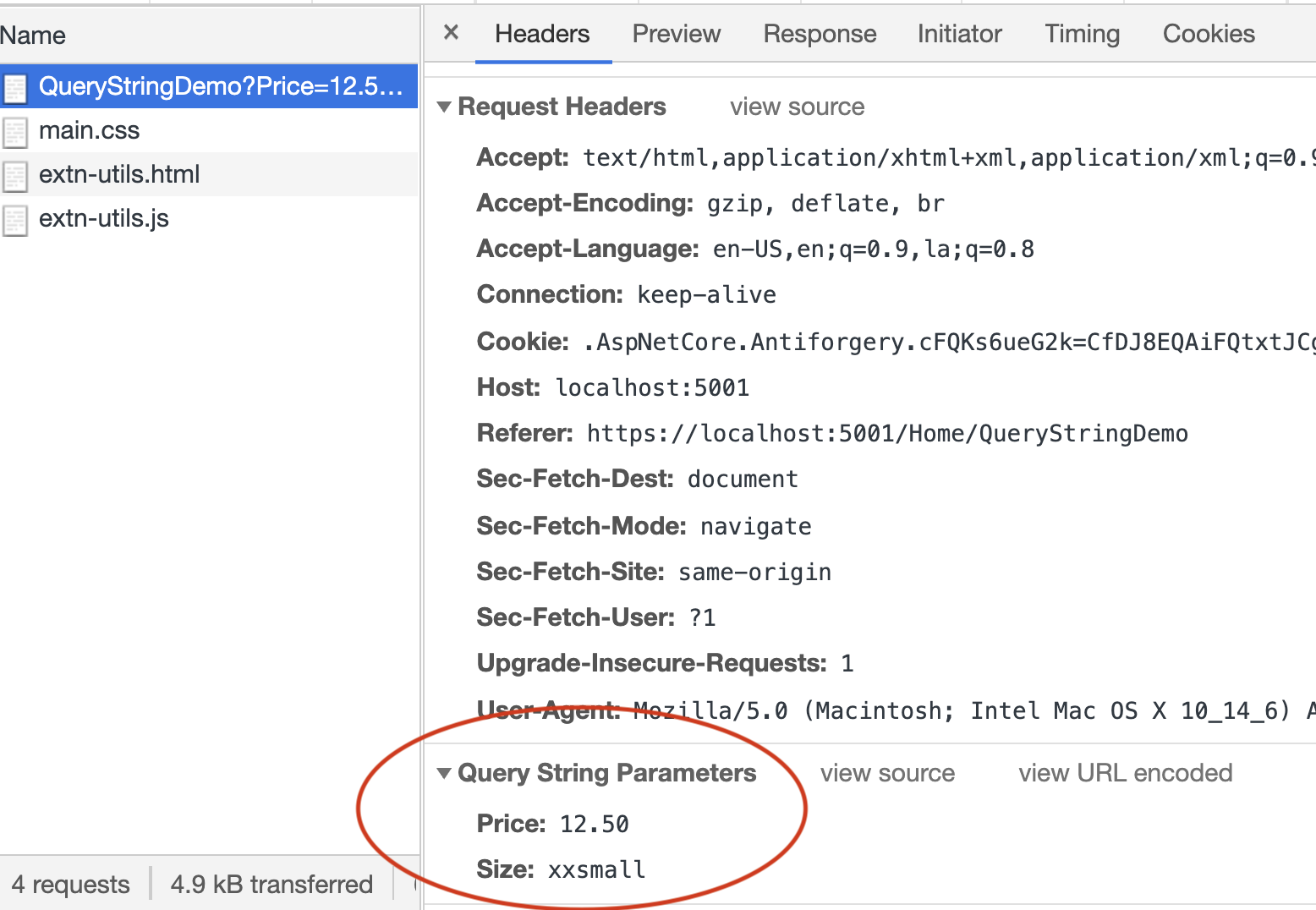
Warning: In this simple example the values from the Query String are assigned to the ViewData and returned to the View. A real example is unlikely to do that without validating the data.
Redirecting
Finally you might have noticed the value of redirect in the forms and some conditional logic in the controllers.
Redirects can be set up using RedirectToAction as follows:
This technique is useful for redirecting users once a process has been completed server side.