

Setting Up a Web Application MVC Project with Visual Studio
This quick start guide will set up a Web Application using Visual Studio's MVC template. The aim of this quick start guide is to:
- Create and Configure a basic application from the starter project provided.
- Review the Structure of the Model-View-Controller Application.
- Edit the View and remove the Bootstrap framework to use a more basic HTML set up.
- Add additional static pages to the wwwroot folder.
- Add additional dynamic pages via the View-Controller.
- Pass Data from the Controller to the View.
Create and Configure a Project
Create a new project with:
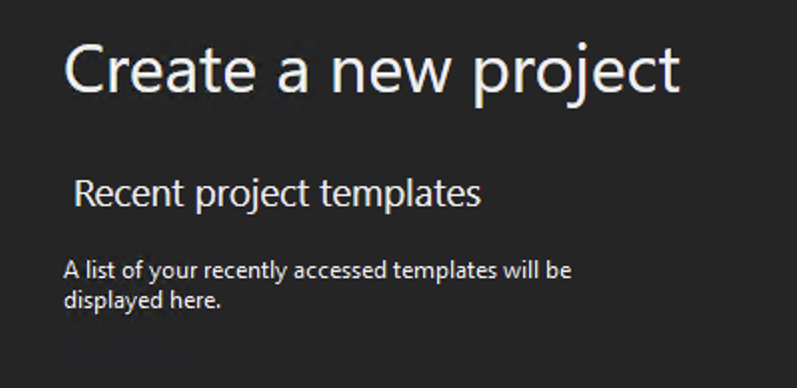
Select "ASP.NET Core Web Application" from the options available.

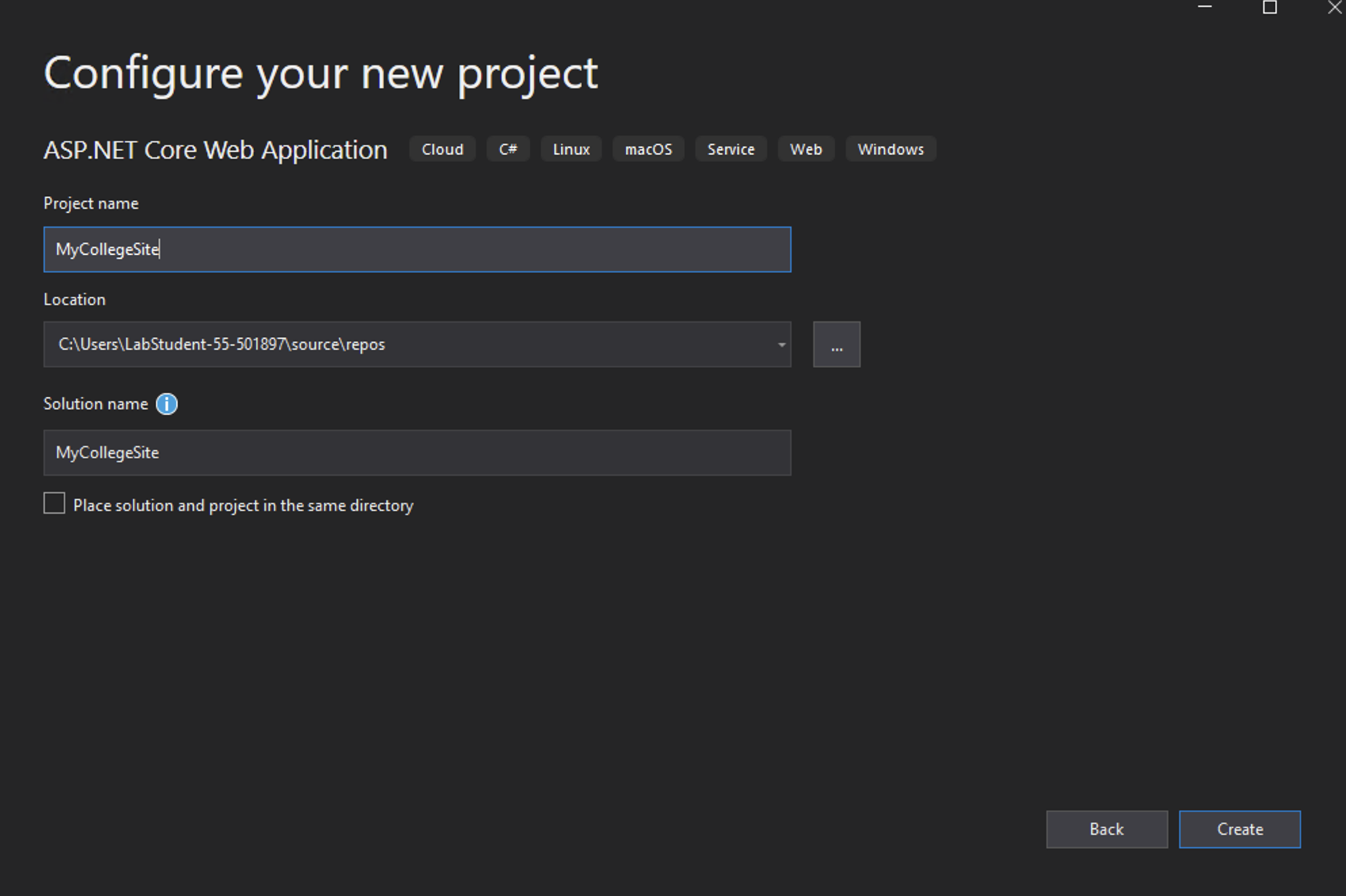
Name the Project "MyCollegeSite".
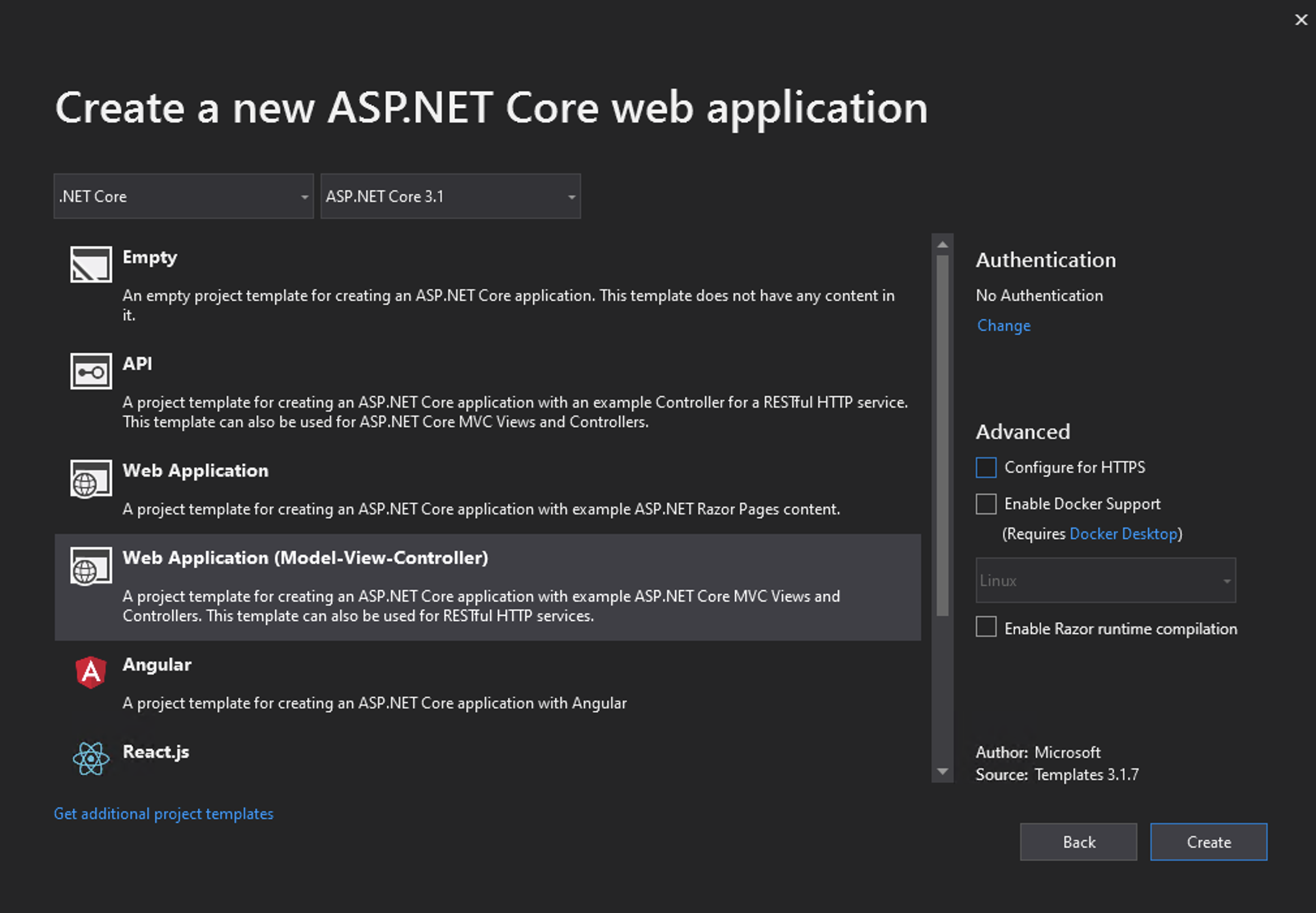
Select .NET Core from the drop-down and "Web Application (Model-View-Controller)" from the list.
For this purposes of this lab uncheck Configure for HTTPS.
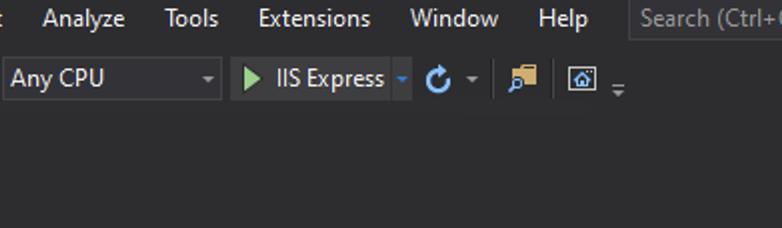
Click "Create" and a basic application is built for you. Run it via the IIS Express button.
In your web browser your page can be viewed.
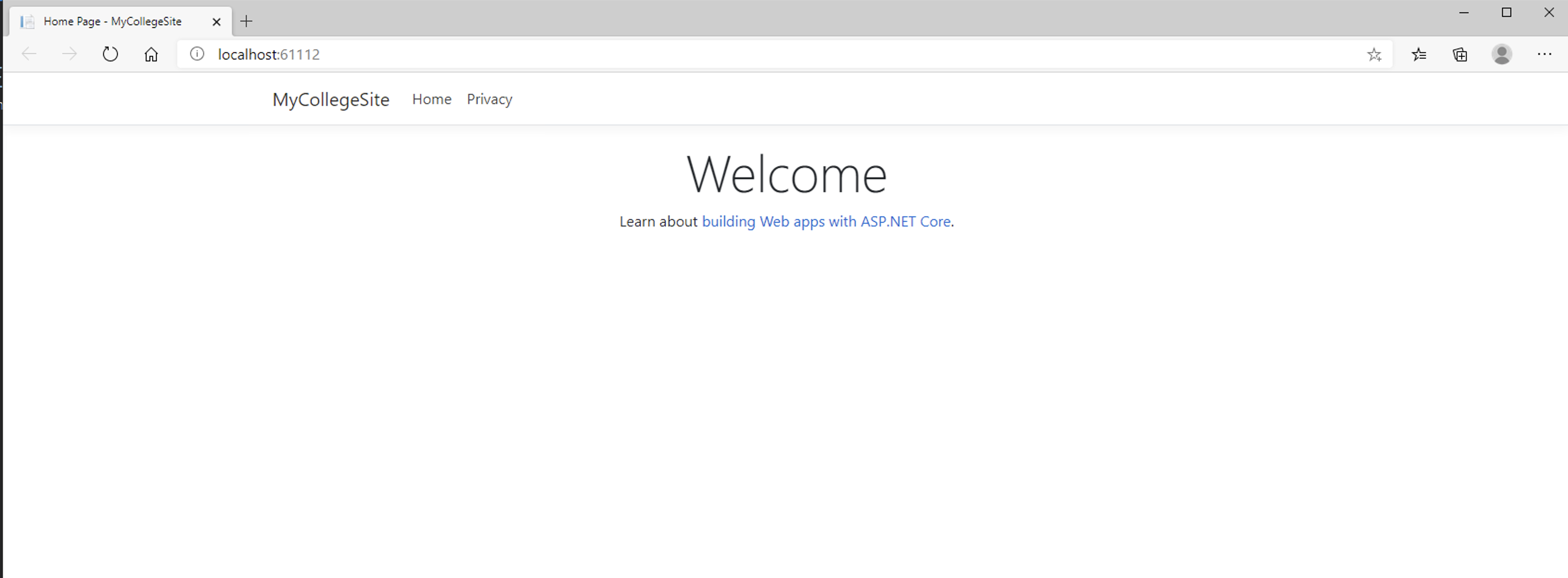
Navigate to the "Privacy" page. We'll see how this dynamic page was created later.
Tip:
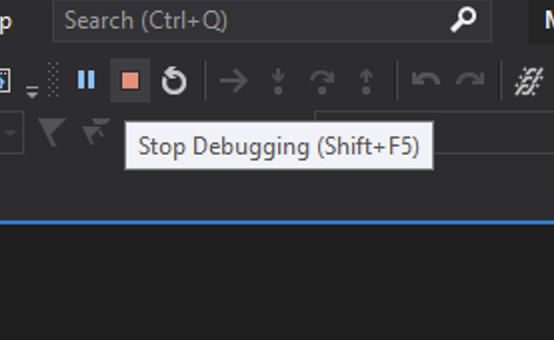
Notice that this is running on a local server known as "localhost". This is a local server that is ideal for development purposes.To amend the files in the project use the Stop button.
Review the Structure of the Model-View-Controller Application
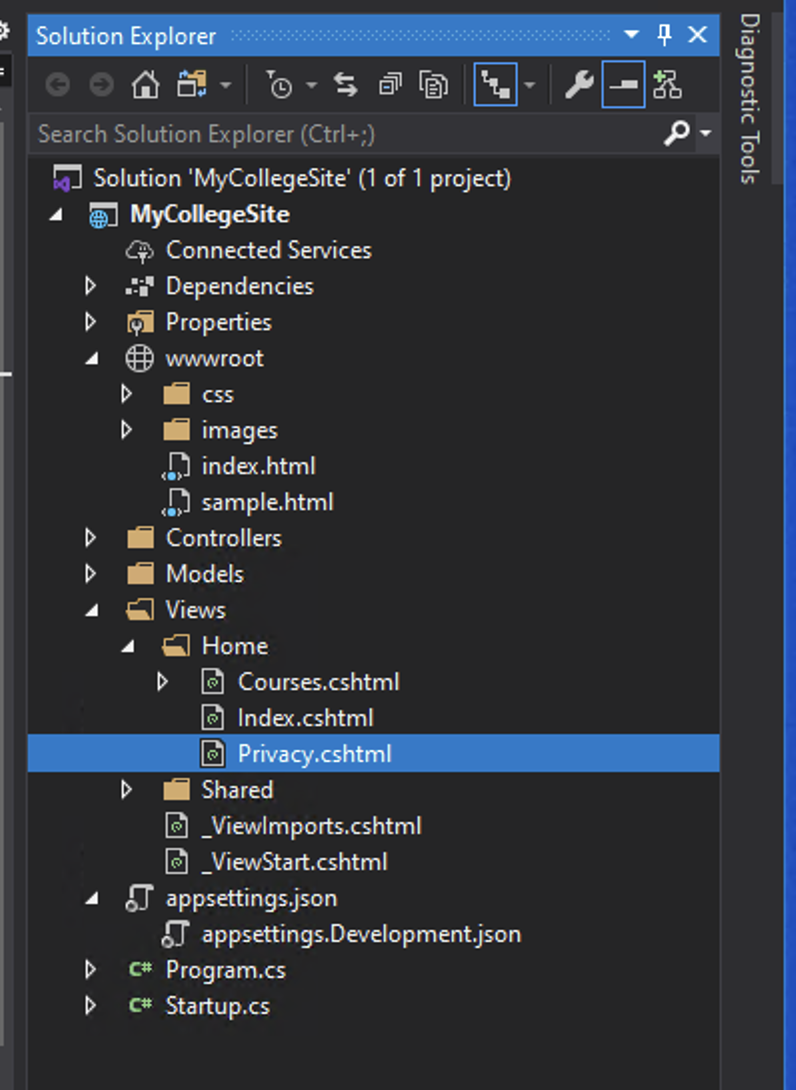
The file structure for the application can be viewed in the solution explorer.
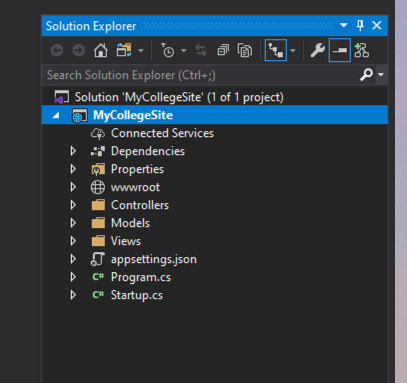
When setting up a (Model-View-Controller) Application the project file structure is as follows:
The main folders are:
- Models
-
Models hold the business logic. Models to represent the data used in the application will be created here. In this simple application we won't make use of the Model.
- Views
-
The Views that contain the HTML and other content. By default file _ViewStart.cshtml links to the _Layout.cshtml where the default Bootstrap HTML/CSS is set.
As a developer you can choose to make more folders inside Views to help structure your content.
- Controllers
-
Communicates between the View and Model. MVC uses a 'separation of concerns' approach to development. The controller controls which views are displayed and whether they need the support of the Model (not all pages will).
- wwwroot
-
Location of all 'static' files such as client side Javascript, images and CSS files. May also include HTML files that don't require any .net server side logic
Edit the View and remove Bootstrap from the template
Locate and open Views/Home/Index.cshtml
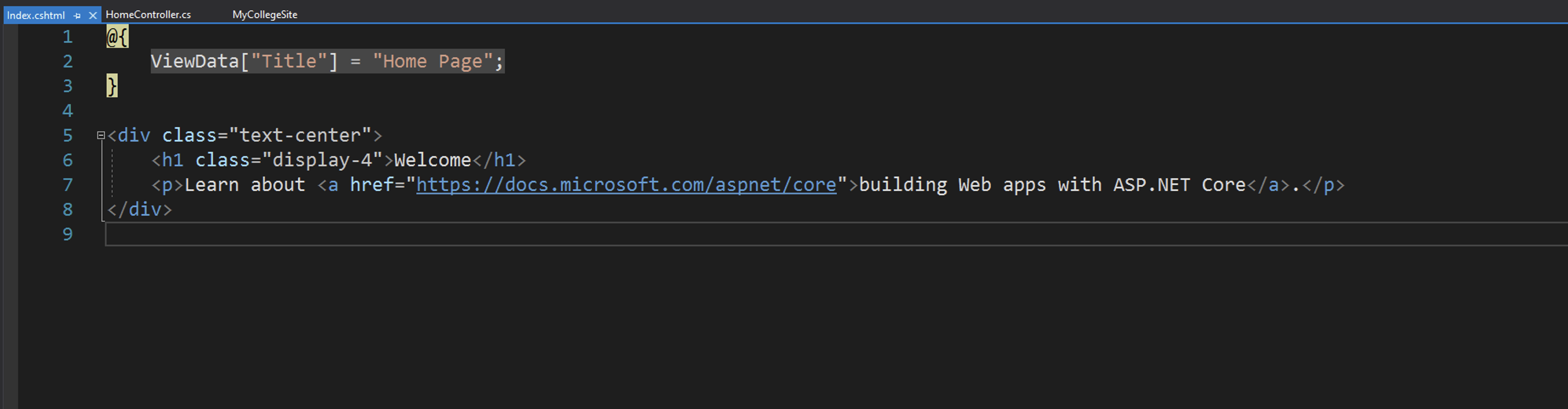
You can edit the Views/Home/Index.cshtml with HTML.
Locate and open Views/Home/Privacy.cshtml. This View is for the "Privacy" page we saw above. As with the Index.cshtml you could edit the Privacy.cshtml View.
Notice however that the Views are using the CSS framework Bootstrap. As we have no need to learn Bootstrap at this point we'll remove it.
Both Index.cshtml and Privacy.cshtml are controlled by the shared layout Views/Shared/_layout.cshtml
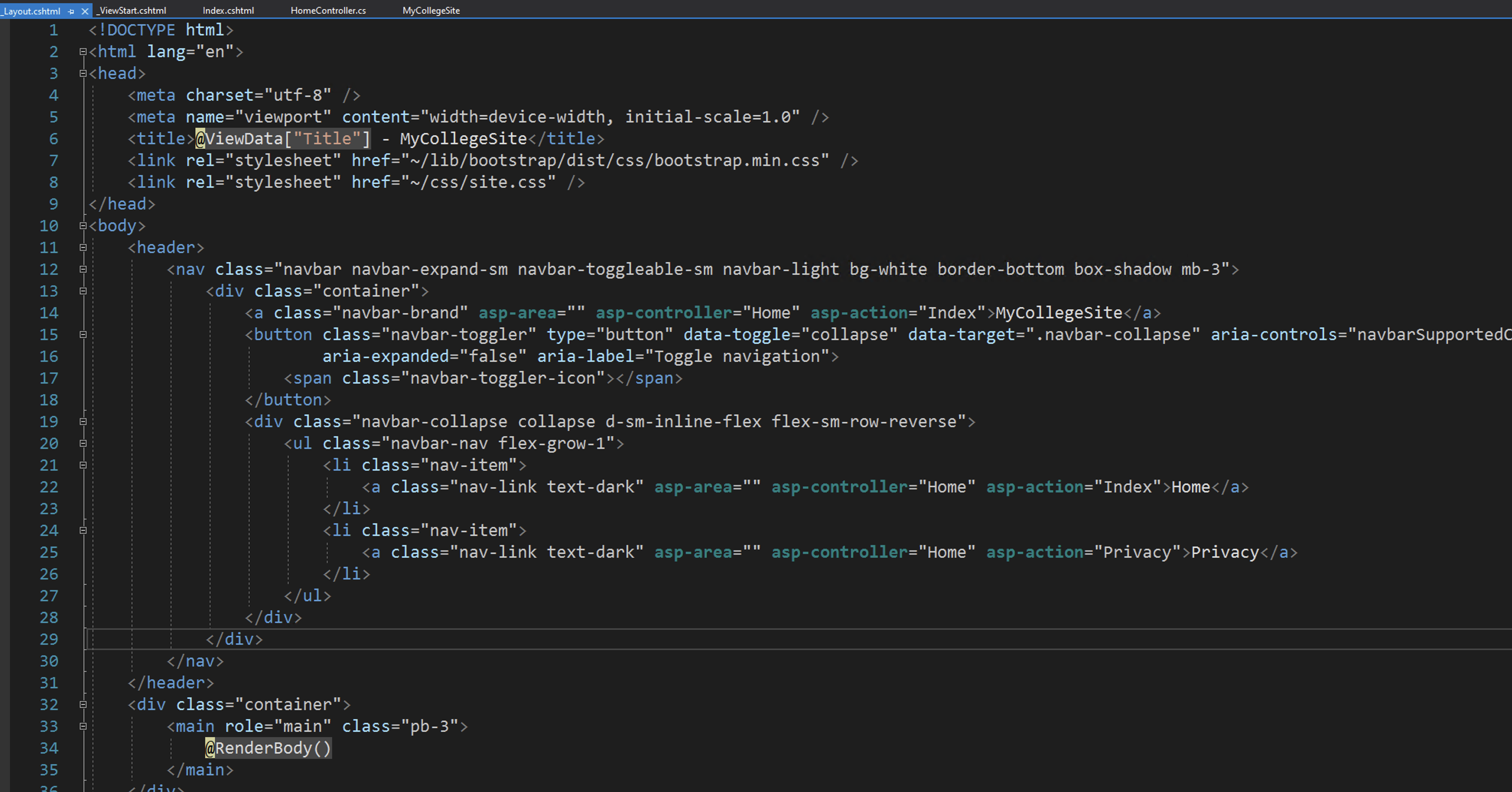
Edit Views/Shared/_layout.cshtml replacing the code above with a more basic HTML set up:
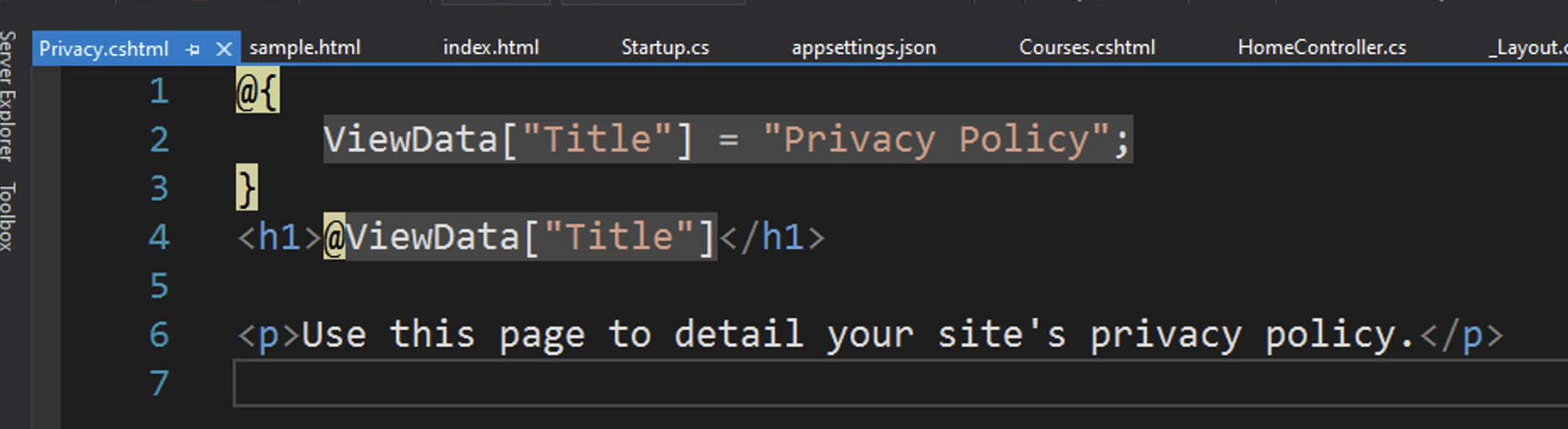
The dynamic parts of this page are the @ directives. The @ViewData["Title"] is used to give the page a dynamic title and @RenderBody() used to render the rest of the layout template.
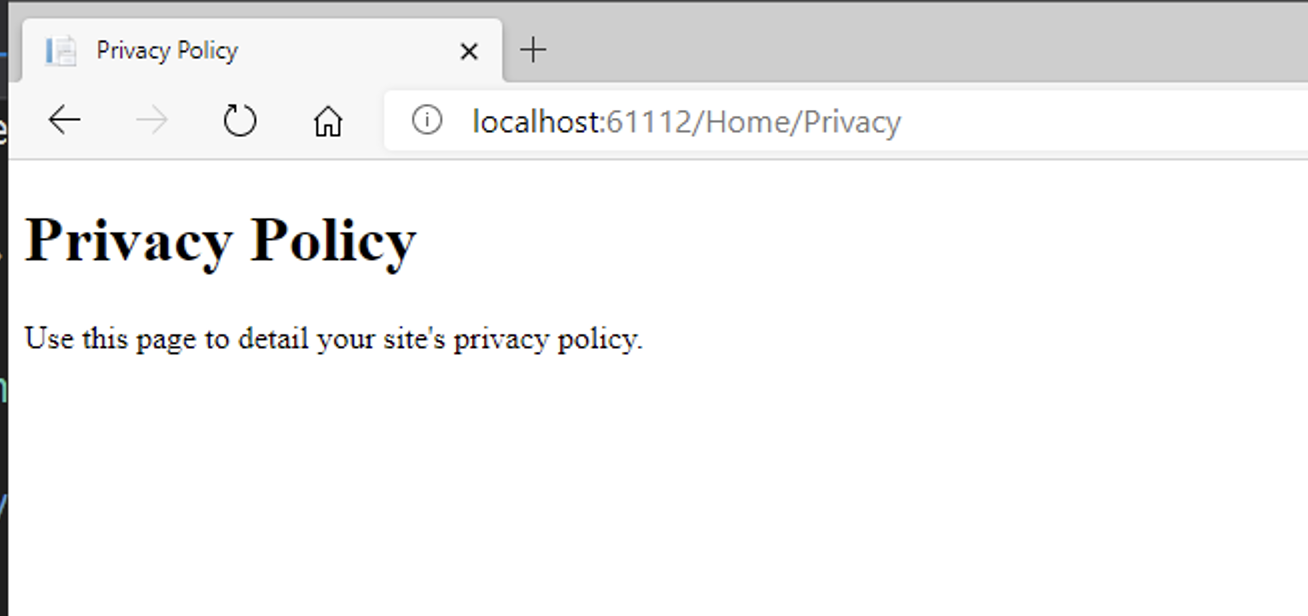
Stop and restart the application. A more basic page should now be seen:
Static Pages and wwwroot
Web applications of this nature have static and dynamic pages.
- Static
Static pages are resources that need no input from the server side logic. This includes CSS, images and client side Javascript as well as some HTML pages.
- Dynamic
Dynamic pages are created by the logic of the Model-View-Controller application. An example in this project would by the privacy page as it was created by the View and Controller. We are yet to add a Model (the business data logic) but that can come later.
All static content is stored in the wwwwroot folder. Locate this in your Solution Explorer.
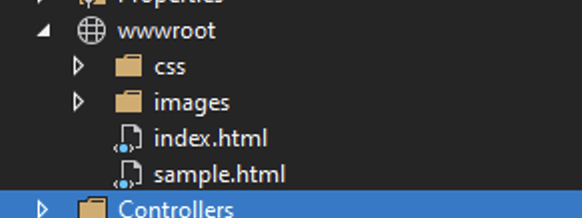
Replace the current files in wwwroot with the files provided. You can download in ZIP format or find them on the GitHub repository.
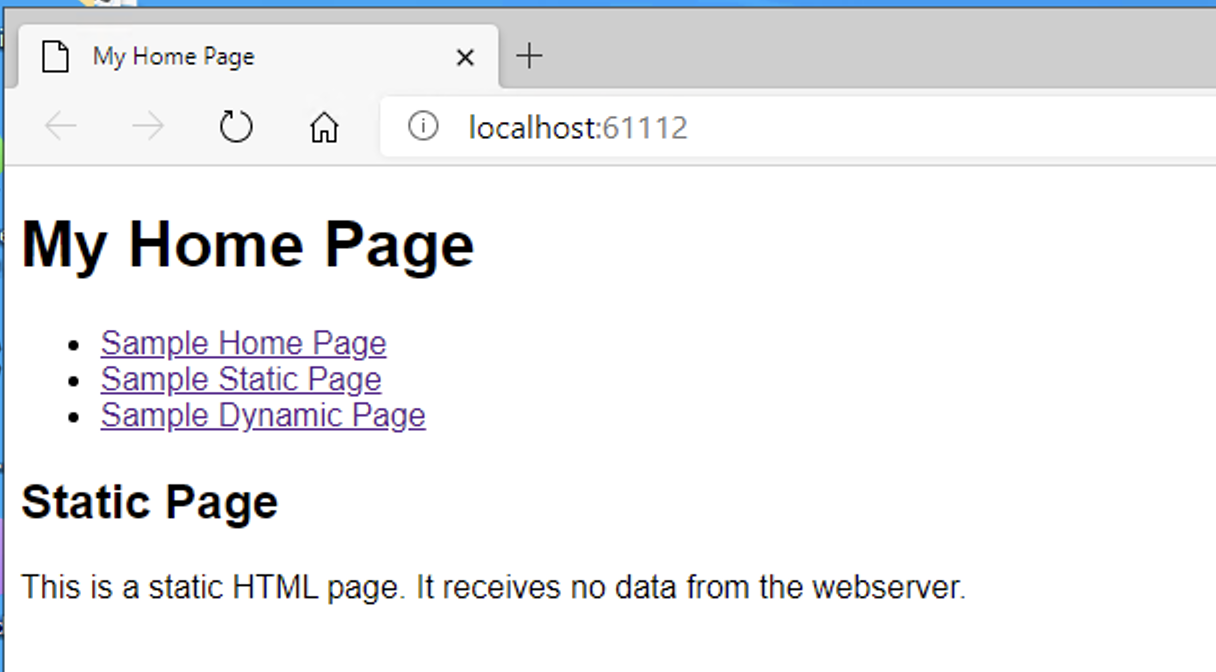
Restart the application and you navigate to localhost:00000/index.html. You should see the index.html page as follows:
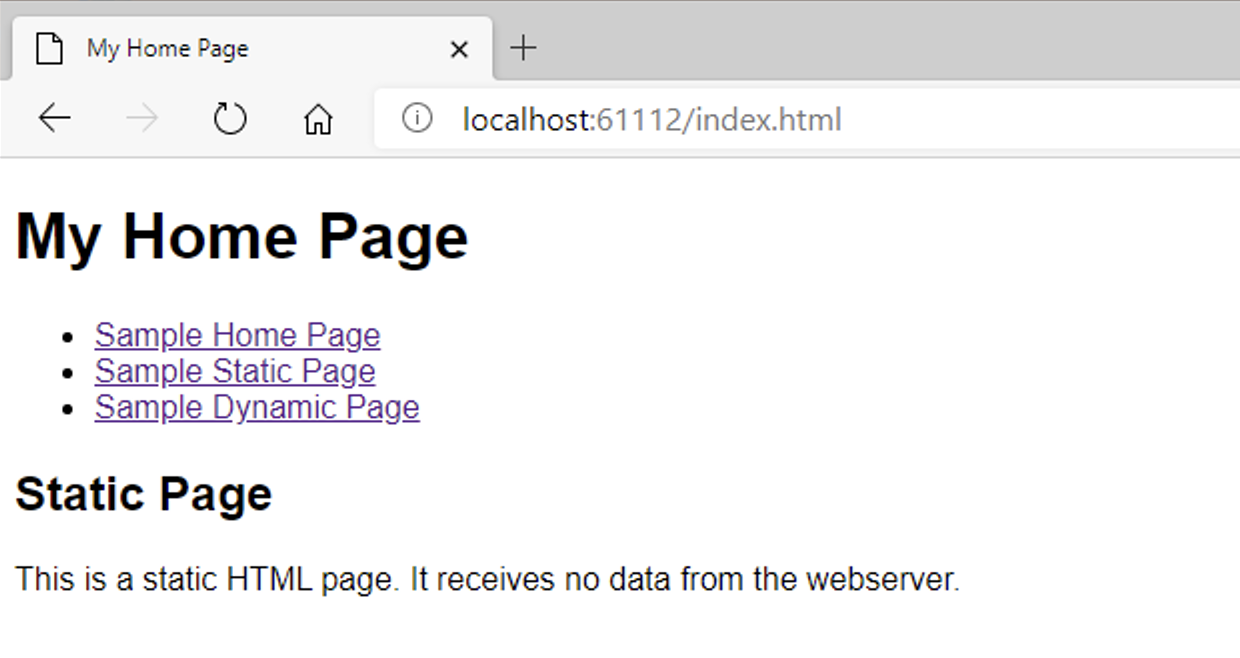
To change the application so that index.html acts as the homepage of our application. To do so edit Startup.cs by adding app.UseDefaultFiles(); before app.UseStaticFiles(); as below:
Restart the application and you navigate to localhost:00000/. You should see the index.html page now acting as the application homepage rather than the dynamic page.
Adding Additional Dynamic Pages via the View-Controller
Before adding a new Dynamic page we'll review how they are added. Dynamic pages are created by the Controller calling a View. For example the "Privacy" page is created by the controller method in Controllers/HomeController.
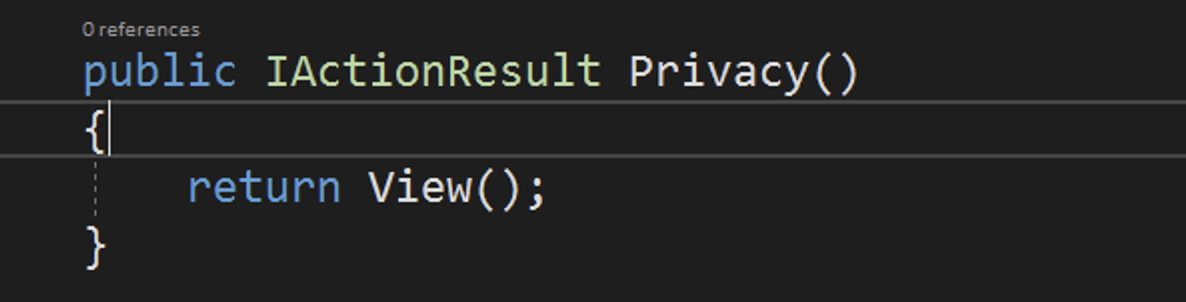
This method calls a View of Views/Home/Privacy.cshtml.
The View then has the following code which will get embedded into the _layout.cshtml by the @RenderBody()
.
To add an additional Dynamic page we therefore need a method in the Controller and a View. We'll add an additional page called "Courses" to our project. To do so add a Courses method to the Controllers/HomeController.cs as follows.
Next create a view for the Controller at Views/Home/Courses.cshtml. This can be created by simply duplicating Views/Home/Privacy.cshtml and renaming the file:
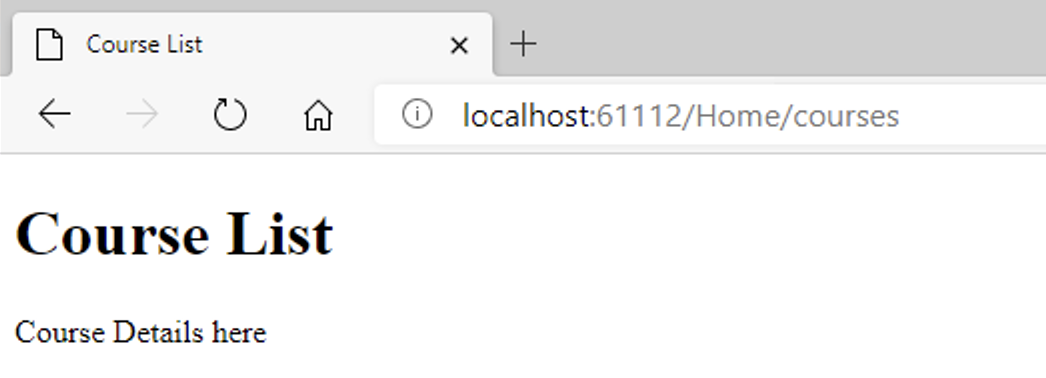
Save and run the appliation. You should now be able to navigate to the new localhost:00000/Home/Courses dynamic page.
Passing Data from the Controller to the View
The above isn't very dynamic. We can add some data to the Controller to pass it to the View.
Edit the Controller method for Courses to:
In the view this data can then be retrieved and looped.
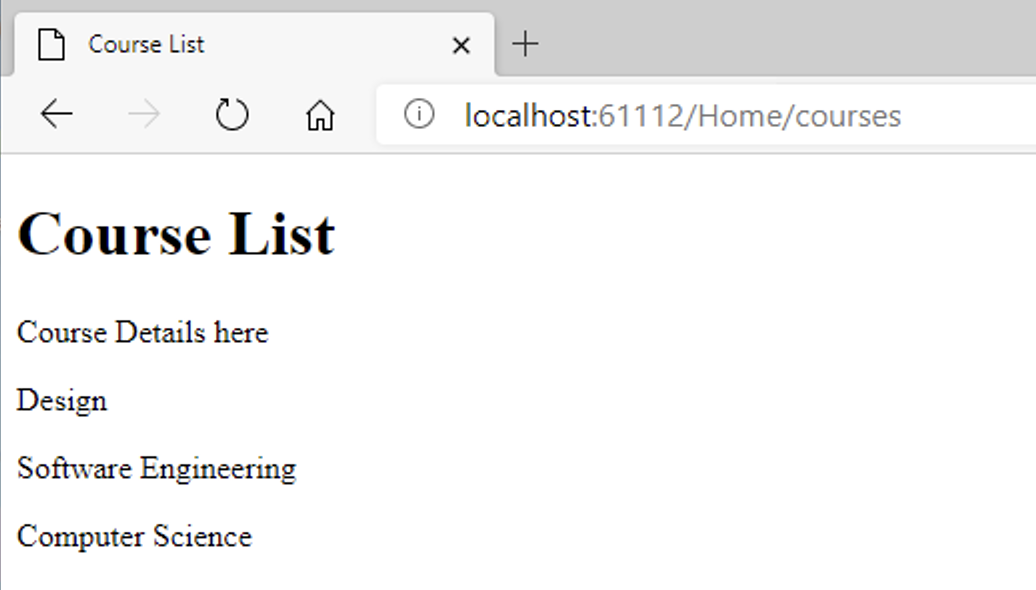
Save and preview your pages. We now have dynamic data in the View. The List is been looped around by the @foreach The next step would be to make this data come from a database.
Have an experiment with the web application as it now stands:
- Could you edit Courses.cshtml so that the courses appear in a list or a table?
- Could you add the stylesheet found in the static files at wwwroot/css/main.css to _layout.cshtml template?