

Adding Data
Manually Populate
The database can be populated manually through the SQL Server Object Explorer via Visual Studio.

This can also be done via the Microsoft SQL Server Management Studio.
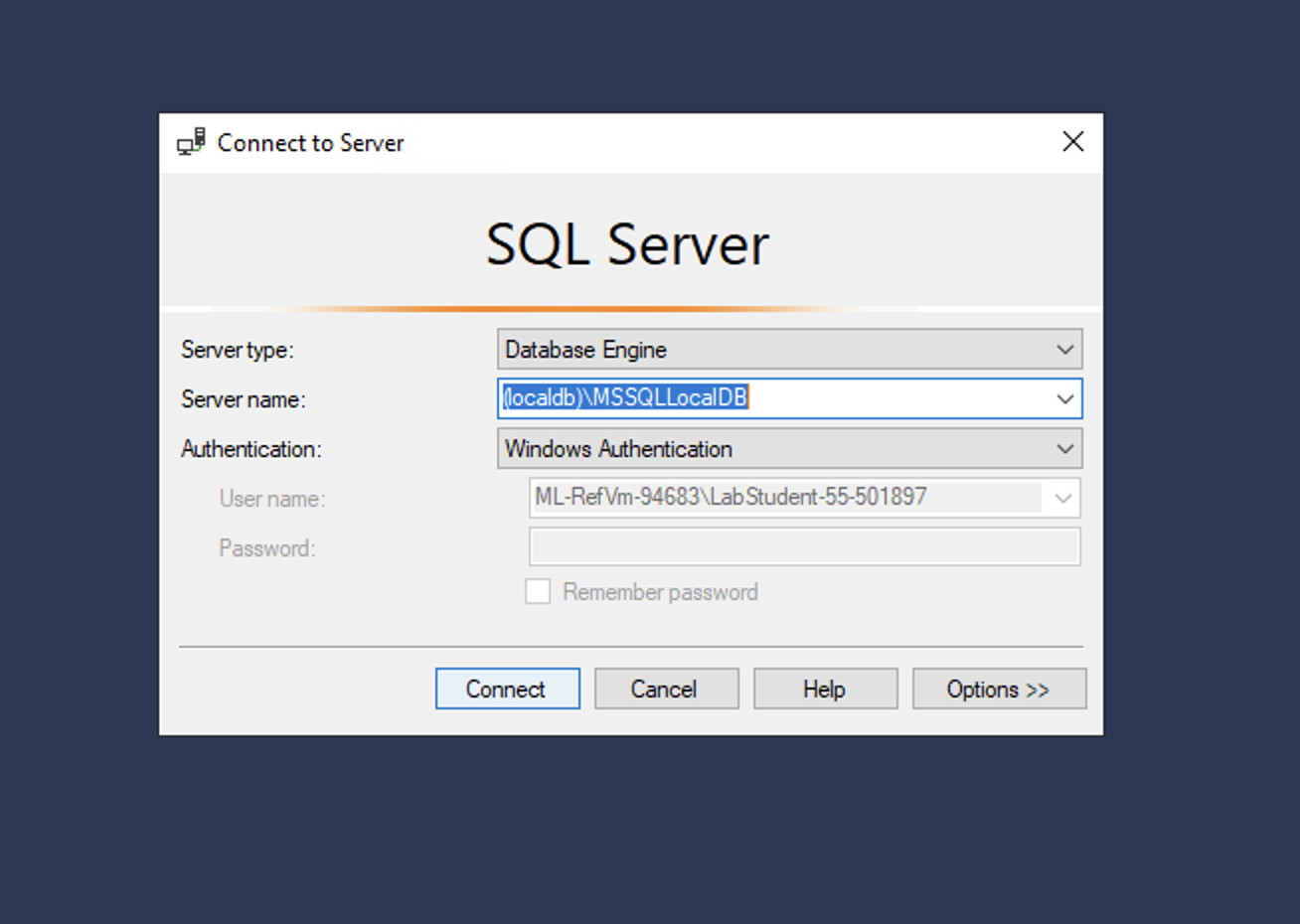
When opening Microsoft SQL Server Management Studio ensure to connect to the (localdb)\\mssqllocaldb Server:
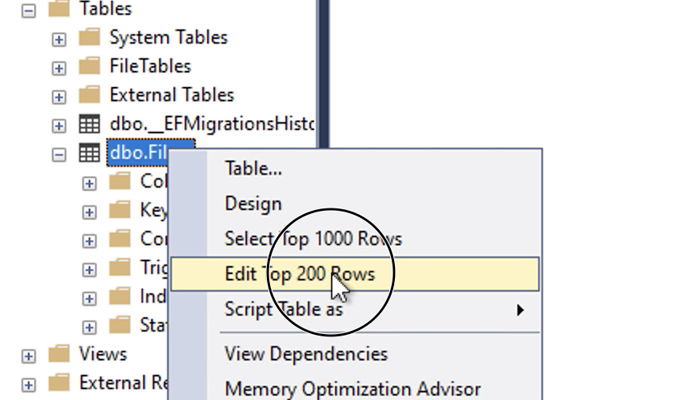
Once the (localdb)\\mssqllocaldb Server has loaded locate the 'Films' table and right-click to choose 'Edit Top 200 Rows' to be able to review and edit the table data.
Data can be manually added from here:

This is okay for occasional editing but is impractical for large data entry
Upload a CSV File
Much more convenient will be to use Microsoft SQL Server Management Studio to upload a CSV file to populate the data.
A CSV file is a 'delimited' file where a given charcter, most commonly a comma, semi-colon or tab acts as a a delmiter to divides the data into columns.
The various delimited file types can be found in the 'save as' options in Excel.
Adding data from a CSV file can be performed in Microsoft SQL Server Management Studio thorugh a Wizard feature.
This is a multi-step procedure best illustrated through the video below:
Supporting Video: Importing CSV Data into SQL Server
Key to the success of importing data in this way, is ensuring the source data types match the destination types. Use the 'Suggest Data Types' and 'Edit Mappings' options discussed in the video.